
Every fraction of a second counts in ecommerce. When a potential customer lands on your online store, the clock starts ticking — and if your pages don’t load fast enough, that visitor is gone before they ever see your products. Ecommerce site speed optimization isn’t just a technical nicety; it’s a direct lever on your revenue. In 2026, with consumer expectations higher than ever and Google’s ranking algorithms increasingly weighted toward performance, a slow store is a store that’s bleeding money.
In this guide, we’ll break down exactly how page load time impacts your conversions, walk through the most impactful optimization strategies, and give you a practical roadmap to make your store measurably faster. Whether you’re running Shopify, WooCommerce, Magento, or a headless commerce setup, these principles apply across the board.
Why Ecommerce Site Speed Optimization Directly Impacts Your Conversion Rate
The relationship between page speed and conversions is not theoretical — it’s been measured extensively across millions of ecommerce sessions. The data tells a consistent story: faster pages convert more visitors into buyers, and even small delays cause measurable revenue loss.
Consider these statistics:
- A 1-second delay in page load time reduces conversions by up to 7%. For a store generating $100,000 per month, that’s $7,000 in lost revenue — every single month — from just one second of delay.
- According to Google’s research, as page load time increases from 1 second to 3 seconds, the probability of a visitor bouncing increases by 32%. Push that to 5 seconds and the bounce probability jumps to 90%.
- Portent’s analysis found that ecommerce sites loading in 1 second had conversion rates 2.5x higher than sites loading in 5 seconds.
- Deloitte’s 2024 study on mobile commerce showed that a 0.1-second improvement in site speed led to an 8.4% increase in conversions for retail sites and a 10.1% increase in average order value.
- Amazon famously calculated that every 100 milliseconds of latency cost them 1% in sales — a figure that translates to billions annually at their scale.
These aren’t edge cases. Speed impacts every stage of the funnel: from first impression and product discovery to cart completion and checkout. A comprehensive CRO audit guide will always flag page speed as a top-tier conversion factor, because it underpins the entire user experience.
“Speed is not a feature — it’s a fundamental requirement. In ecommerce, every millisecond of friction is a tax on your revenue.”
Understanding Core Web Vitals for Ecommerce: LCP, INP, and CLS
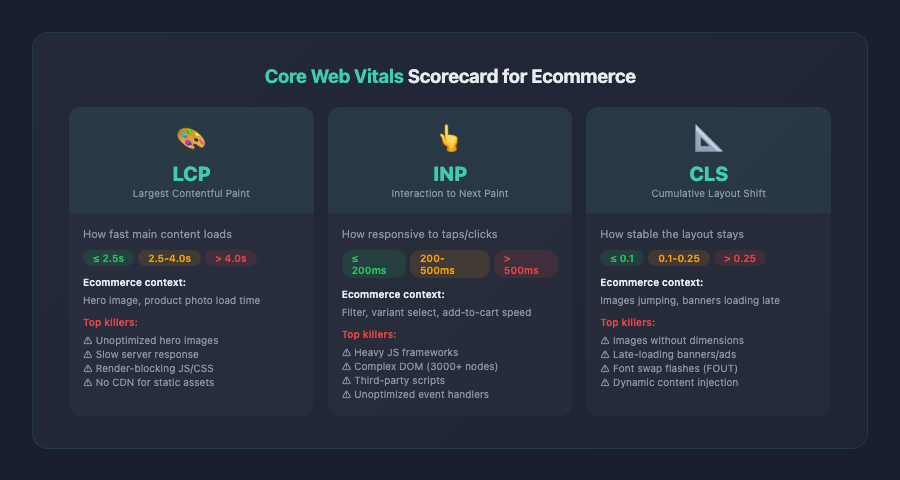
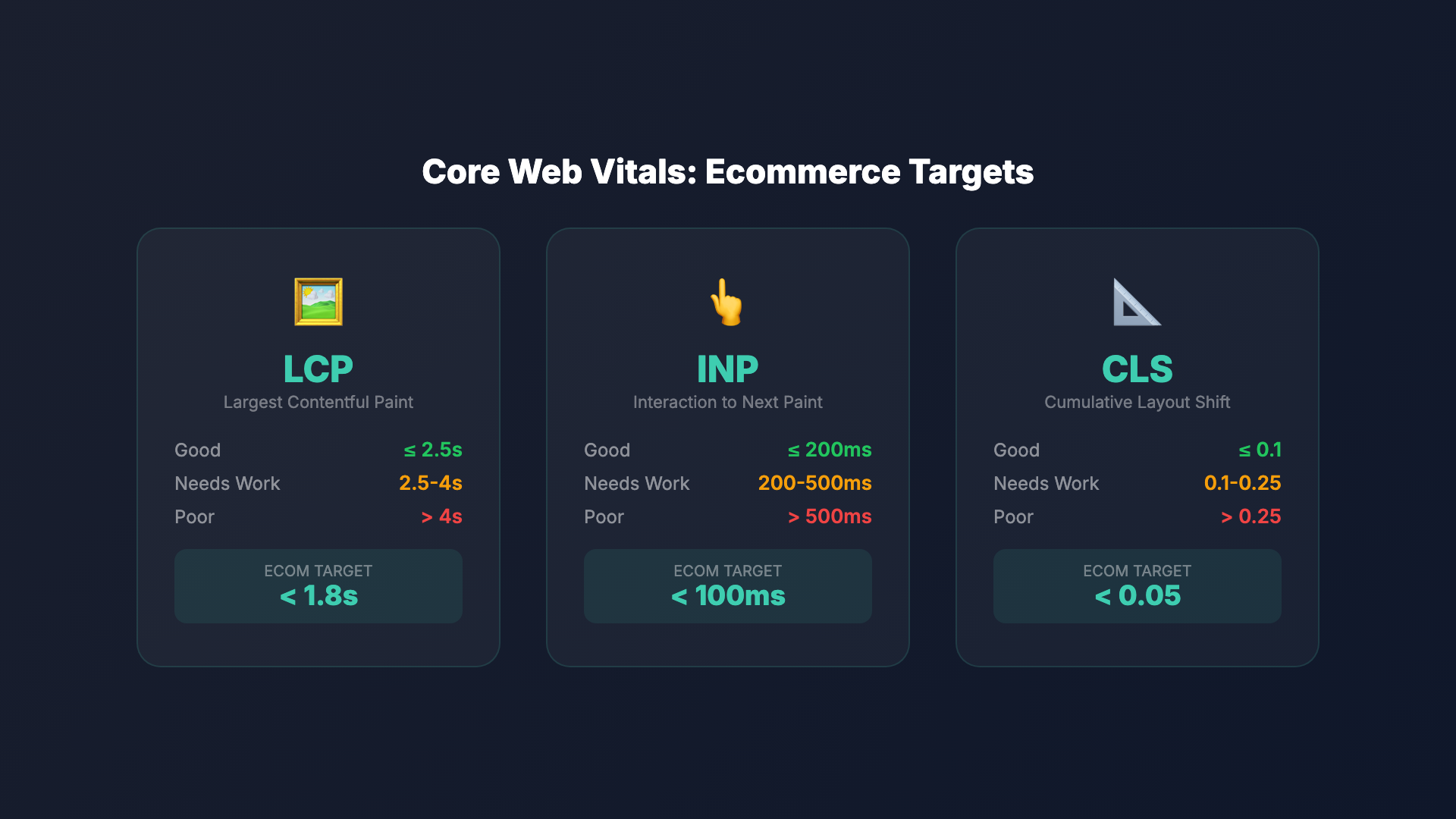
Google’s Core Web Vitals are the standard framework for measuring real-world page performance, and in 2026 they carry significant weight in both search rankings and user experience assessment. For ecommerce sites, understanding and optimizing these three metrics is essential.
| Metric | Good | Needs Improvement | Poor | Ecom Target |
|---|---|---|---|---|
| LCP (Largest Contentful Paint) | ≤ 2.5s | 2.5 – 4.0s | > 4.0s | < 1.8s |
| INP (Interaction to Next Paint) | ≤ 200ms | 200 – 500ms | > 500ms | < 100ms |
| CLS (Cumulative Layout Shift) | ≤ 0.1 | 0.1 – 0.25 | > 0.25 | < 0.05 |
| TTFB (Time to First Byte) | ≤ 800ms | 800ms – 1.8s | > 1.8s | < 400ms |
| FCP (First Contentful Paint) | ≤ 1.8s | 1.8 – 3.0s | > 3.0s | < 1.2s |
Source: Google Web Vitals thresholds + ecommerce best practices
Largest Contentful Paint (LCP)
LCP measures how long it takes for the largest visible content element — typically a hero image, product photo, or banner — to fully render on screen. Google considers an LCP of 2.5 seconds or less to be “good.”
For ecommerce, LCP is critical because it directly reflects the perceived speed of your product pages and landing pages. If your hero banner or main product image takes 4+ seconds to appear, visitors perceive your entire site as slow, even if other elements loaded quickly.
Common LCP killers in ecommerce:
- Unoptimized hero images and product photography (often 2-5MB originals served without compression)
- Slow server response times from shared hosting or unoptimized database queries
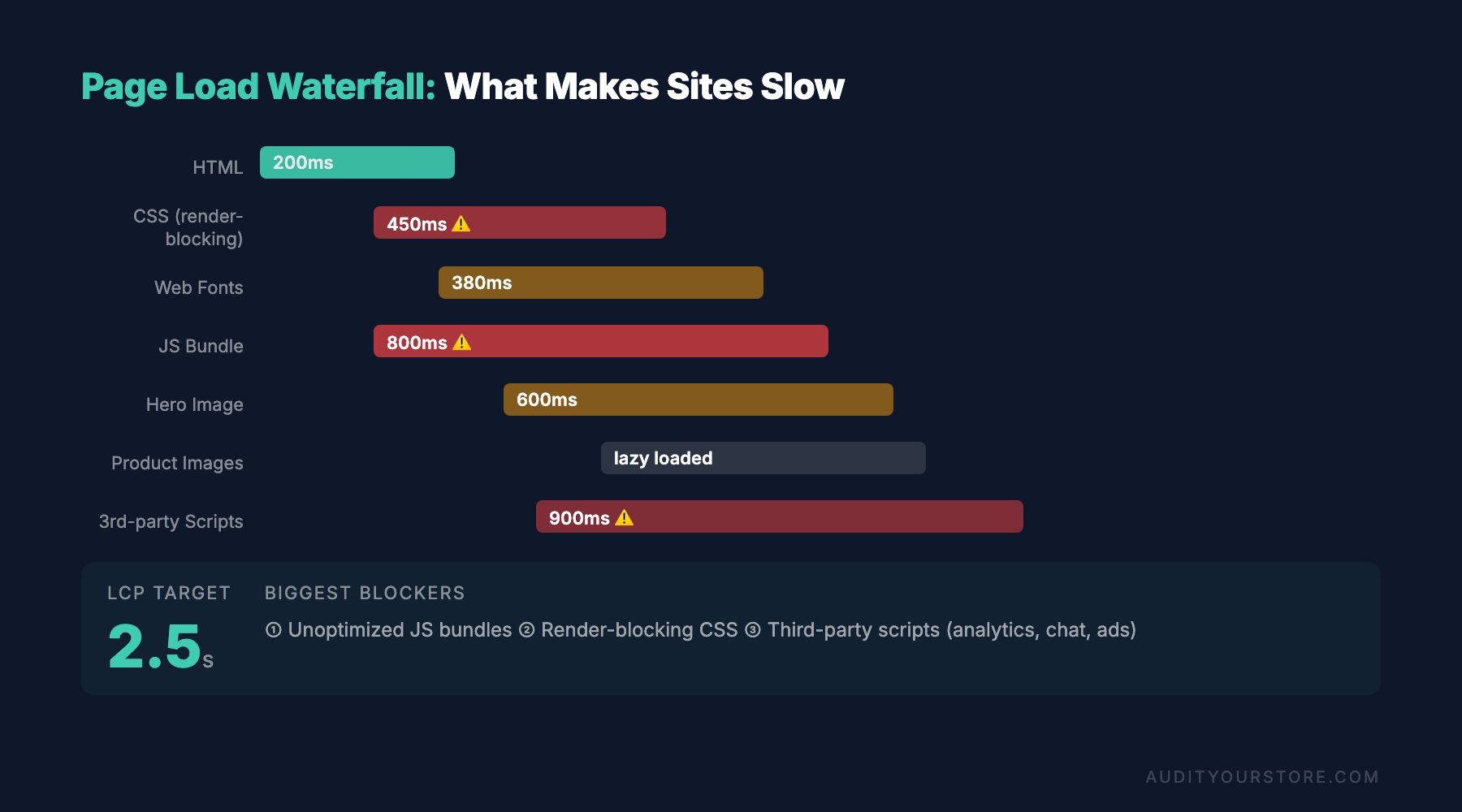
- Render-blocking JavaScript and CSS that delay the browser’s ability to paint content
- Third-party scripts (chat widgets, analytics, review platforms) that compete for bandwidth during initial load
Interaction to Next Paint (INP)
INP replaced First Input Delay (FID) as a Core Web Vital in 2024, and it’s a far more meaningful metric for ecommerce stores. While FID only measured the delay before the browser started processing the first interaction, INP measures the latency of all interactions throughout the entire page lifecycle — and reports the worst one.
An INP of 200 milliseconds or less is considered good. For ecommerce, this matters enormously because shoppers interact frequently: filtering products, selecting variants, adding items to cart, opening image galleries, and navigating between pages. If any of these interactions feel sluggish, it erodes trust and increases abandonment.
What causes poor INP on ecommerce sites:
- Heavy JavaScript frameworks executing expensive operations on the main thread
- Product filtering and sorting logic that blocks the UI while processing
- Complex DOM structures with thousands of elements (common on collection pages with many products)
- Third-party scripts that hijack the main thread at unpredictable intervals
Cumulative Layout Shift (CLS)
CLS measures visual stability — how much the page content shifts unexpectedly as it loads. A CLS score of 0.1 or less is considered good. For ecommerce, layout shifts are particularly damaging because they can cause misclicks. Imagine a shopper reaching to tap “Add to Cart” and the button jumps because an ad or image loaded above it. That’s not just annoying; it’s a conversion killer.
Common CLS culprits in ecommerce:
- Images and videos without defined width and height attributes
- Dynamically injected banners, promotional bars, or notification popups
- Web fonts that cause text to reflow when they finish loading (FOUT — Flash of Unstyled Text)
- Late-loading product review widgets, trust badges, or recommendation carousels
Image Optimization Strategies That Slash Page Load Time
Images are typically the single largest contributor to page weight on ecommerce sites. A well-stocked product catalog can mean hundreds or thousands of images, and if they’re not optimized, they’ll drag your load times into unacceptable territory. Effective ecommerce page speed optimization always starts with images.
Choose the Right Format
In 2026, your image format strategy should look like this:
- AVIF — The preferred format for maximum compression with minimal quality loss. AVIF delivers 30-50% smaller file sizes compared to WebP and is now supported by all major browsers. Use it as your primary format.
- WebP — Your fallback for any edge cases where AVIF isn’t supported. WebP still offers 25-35% better compression than JPEG.
- JPEG/PNG — Only as a last-resort fallback. Use the
<picture>element with source sets to serve the best format each browser supports.
Implement Responsive Images
Never serve a 2000px-wide product image to a mobile device with a 400px viewport. Use the srcset and sizes attributes to let the browser choose the appropriately sized image for each device. A proper responsive image implementation can reduce image payload by 40-70% on mobile devices.
Lazy Loading: Load What’s Visible, Defer the Rest
Lazy loading is one of the highest-impact, lowest-effort speed optimizations available. By deferring the loading of images that are below the fold — product thumbnails further down a collection page, for instance — you dramatically reduce the initial page weight and speed up LCP.
Best practices for ecommerce lazy loading:
- Do not lazy-load above-the-fold images. Your hero image, primary product photo, and any content visible without scrolling should load eagerly. Lazy-loading these will actually hurt your LCP.
- Use native lazy loading (
loading="lazy") for simplicity and broad browser support. - For more control, use the Intersection Observer API to trigger loading when images approach the viewport.
- Implement low-quality image placeholders (LQIP) or dominant-color placeholders to prevent layout shifts and give users visual feedback while images load.
- On collection pages with 20+ products, lazy loading below-the-fold thumbnails can reduce initial page weight by 60-80%.
Compression and Quality Settings
Most product images can be compressed to a quality setting of 75-85% without any perceptible loss in visual fidelity. Automated image optimization pipelines — whether through your CDN, a build tool like Sharp, or platform-specific apps — should handle this at scale so that no unoptimized image ever reaches production.
Server Response Time, CDN Usage, and Caching Strategies for Faster Ecommerce
Before the browser can even begin rendering your page, it has to receive the HTML from your server. If your server is slow to respond, everything else is delayed. Time to First Byte (TTFB) — the time between the browser’s request and the first byte of the response — is the foundation upon which all other performance metrics are built.
Optimizing Server Response Time
For ecommerce, aim for a TTFB of 200-400 milliseconds or less. Here’s how to get there:
- Upgrade your hosting. Shared hosting is almost never adequate for a serious ecommerce store. Invest in dedicated, cloud, or managed hosting with adequate CPU, memory, and SSD storage. For WooCommerce sites, this is often the single biggest performance bottleneck — our WooCommerce audit guide covers hosting recommendations in detail.
- Optimize database queries. Slow queries from bloated product catalogs, excessive post revisions, or unindexed tables can add hundreds of milliseconds to every page load. Use query monitoring tools to identify and fix the worst offenders.
- Use application-level caching. Object caching (Redis or Memcached) and opcode caching (OPcache for PHP-based platforms) dramatically reduce the processing time for repeated requests.
- Consider edge-side rendering. Modern architectures using edge computing (Cloudflare Workers, Vercel Edge Functions, Deno Deploy) can generate HTML at CDN edge nodes, cutting TTFB to under 100ms for visitors worldwide.
CDN Implementation for Global Performance
A Content Delivery Network is non-negotiable for any ecommerce store serving customers across multiple regions. A CDN caches your static assets — images, CSS, JavaScript, fonts — on servers distributed globally, serving them from the location nearest to each visitor.
CDN impact on ecommerce performance:
- Reduces asset delivery latency by 50-70% for geographically distant visitors
- Offloads bandwidth from your origin server, improving its ability to handle dynamic requests
- Provides automatic image optimization and format conversion (Cloudflare Polish, Fastly Image Optimizer, etc.)
- Offers edge caching for full HTML pages, which can bring TTFB below 50ms for cached pages
If you’re on Shopify, you already benefit from their built-in CDN (powered by Cloudflare). For self-hosted platforms, implementing a CDN like Cloudflare, Fastly, or AWS CloudFront should be a top priority. Our Shopify audit guide includes specific recommendations for maximizing Shopify’s built-in performance features.
Browser Caching and Cache-Control Strategies
Proper cache headers ensure that returning visitors don’t re-download assets they’ve already fetched. For ecommerce, implement a tiered caching strategy:
- Static assets (CSS, JS, fonts, images): Cache for 1 year with content-based hash filenames. When assets change, the filename changes, automatically busting the cache.
- HTML pages: Cache for shorter durations (5-15 minutes) or use
stale-while-revalidateto serve cached content while fetching fresh versions in the background. - API responses (cart, pricing, inventory): Generally should not be cached, or cached for very short durations (seconds) to ensure accuracy.
- Service workers: Implement a service worker with a cache-first strategy for static assets and a network-first strategy for dynamic content to enable near-instant repeat visits.
Code Minification, Third-Party Script Audits, and JavaScript Performance
JavaScript is the most expensive resource on the web, byte for byte. While a 100KB image can be decoded efficiently by the browser’s optimized image pipeline, 100KB of JavaScript must be downloaded, parsed, compiled, and executed — all of which compete for the main thread and directly impact INP and time to interactive.
Minification and Bundling
Code minification — removing whitespace, comments, and shortening variable names — typically reduces JavaScript and CSS file sizes by 20-40%. Combined with Gzip or Brotli compression (which your server or CDN should apply automatically), total transfer sizes can be reduced by 70-80% compared to uncompressed source files.
Beyond minification, focus on:
- Tree shaking: Modern bundlers (Vite, Rollup, webpack) can eliminate unused code from your bundles. Audit your dependencies — many ecommerce sites ship entire utility libraries when they only use a handful of functions.
- Code splitting: Load only the JavaScript needed for the current page. Checkout code shouldn’t load on product pages. Product filtering logic shouldn’t load on the homepage.
- Defer non-critical JS: Use
deferorasyncattributes on script tags, and dynamically import modules only when they’re needed (e.g., load the image zoom library only when a user hovers over a product image).
The Third-Party Script Problem
Third-party scripts are the silent performance killers of ecommerce. Every analytics tool, chat widget, review platform, social media pixel, A/B testing tool, and retargeting tag adds weight and main-thread processing time. It’s not uncommon for a typical ecommerce store to load 15-30 third-party scripts, collectively adding 1-3 seconds to page load time.
How to audit and manage third-party scripts:
- Inventory every script. Use Chrome DevTools’ Network panel filtered to third-party domains. Document what each script does and who owns it internally.
- Measure individual impact. Use WebPageTest’s “block” feature to test your site with each third-party script individually disabled. Identify the worst offenders.
- Remove what you don’t need. That Facebook pixel from a campaign you stopped running two years ago? The chat widget nobody uses? The second analytics platform that duplicates Google Analytics? Remove them.
- Delay what you can. Scripts that aren’t needed for the initial user experience — chat widgets, review widgets, social proof notifications — can be loaded after the page is interactive, either on user interaction (scroll, click) or after a time delay.
- Use a tag manager wisely. Google Tag Manager can help centralize script management, but it’s not a performance solution in itself. A poorly configured tag manager can be worse than individually loaded scripts.
- Self-host when possible. Hosting third-party scripts on your own CDN eliminates additional DNS lookups and connection overhead, and gives you control over caching.
Audit your third-party scripts quarterly. What was essential last year might be dead weight today. Every script should justify its performance cost with measurable business value.
Font Loading Strategies That Prevent Performance Bottlenecks
Web fonts are a frequently overlooked source of performance problems on ecommerce sites. A typical store might load 4-8 font files (multiple weights and styles of a brand typeface), each adding 20-100KB to the page weight. But the bigger issue isn’t file size — it’s how fonts load and the rendering delays they cause.
The Font Loading Problem
When a browser encounters text styled with a web font that hasn’t loaded yet, it has two choices: show nothing (Flash of Invisible Text, or FOIT) or show the text in a fallback font and swap when the web font arrives (Flash of Unstyled Text, or FOUT). Both are problematic. FOIT makes content invisible, hurting perceived performance. FOUT causes layout shifts that damage your CLS score.
Optimized Font Loading Strategy for Ecommerce
- Limit font usage. Do you really need four weights (light, regular, medium, bold) plus italics? Most ecommerce sites can get by with two weights — regular and bold — which cuts font payload in half.
- Use
font-display: swapwith size-adjusted fallbacks. Theswapdescriptor tells the browser to immediately show text in a fallback font, then swap to the web font once loaded. Pair this withsize-adjust,ascent-override, anddescent-overrideCSS properties to match the fallback font’s dimensions to the web font, virtually eliminating CLS. - Preload critical fonts. Use
<link rel="preload" as="font" type="font/woff2" crossorigin>for the one or two font files used in above-the-fold content. This tells the browser to fetch them early, before it discovers them in CSS. - Use WOFF2 format exclusively. WOFF2 offers 30% better compression than WOFF and is supported by every modern browser. There’s no reason to serve other formats in 2026.
- Subset your fonts. If you only need Latin characters, don’t serve a font file that includes Cyrillic, Greek, and CJK glyphs. Subsetting can reduce font file sizes by 50-90%.
- Self-host your fonts. Avoid loading fonts from Google Fonts or other external CDNs. Self-hosting eliminates the extra DNS lookup and connection setup, and gives you full control over caching and loading behavior.
Mobile Site Speed vs. Desktop: Why Mobile Optimization Is Non-Negotiable
Mobile commerce now accounts for over 72% of all ecommerce traffic and approximately 63% of online sales globally as of early 2026. Yet mobile sites are consistently slower than their desktop counterparts, and the performance gap has real revenue consequences.
Why Mobile Is Slower
Mobile devices face compounding performance challenges that desktop machines largely avoid:
- Network variability. Mobile connections fluctuate between 4G, 5G, and Wi-Fi, with real-world speeds often far below theoretical maximums. The median mobile connection speed globally is still only around 30-40 Mbps, and latency is significantly higher than wired connections.
- Processing power. Even flagship phones have less raw CPU power than mid-range laptops. Budget Android devices — which represent the majority of global mobile traffic — can be 3-5x slower at JavaScript execution than an iPhone 16 or Galaxy S26.
- Thermal throttling. Mobile CPUs throttle performance when they get hot, which happens quickly during intensive JavaScript execution. A task that takes 500ms initially might take 800ms after 30 seconds of sustained processing.
- Memory constraints. Limited RAM means the browser may need to re-parse and re-compile JavaScript more frequently, and large DOM trees can cause jank and crashes.
Mobile-Specific Speed Optimization Tactics
Optimizing for mobile speed means thinking beyond “the same site on a smaller screen.” It requires deliberate architectural choices:
- Reduce JavaScript payload aggressively. Target under 200KB of compressed JavaScript for initial page load on mobile. Every kilobyte of JS costs more on mobile than desktop due to weaker processors.
- Prioritize above-the-fold content. Use critical CSS inlining to render above-the-fold content without waiting for external stylesheets. Preload the LCP image. Defer everything that isn’t immediately visible.
- Optimize touch interactions. Ensure tap targets are large enough (minimum 48x48px) and that interaction handlers are lightweight. Heavy event handlers on scroll or touch events destroy INP scores on mobile.
- Test on real devices. Chrome DevTools throttling is a useful approximation, but nothing replaces testing on actual mid-range Android devices. Tools like BrowserStack or WebPageTest’s Moto G Power device testing give you realistic mobile performance data.
- Consider AMP or lightweight alternatives for top-of-funnel pages. While AMP has fallen out of favor, the principle of ultra-lightweight landing pages for ad traffic and organic search is sound. Purpose-built lightweight pages for high-traffic entry points can dramatically improve mobile conversion rates.
The performance gap between mobile and desktop is a conversion gap. Stores that close this gap see outsized returns, because mobile shoppers are simultaneously the largest audience segment and the one most sensitive to speed. A site that loads in 2 seconds on desktop but 5 seconds on mobile is leaving the majority of its potential revenue on the table.
Building a Site Speed Optimization Workflow: Measurement, Prioritization, and Continuous Improvement
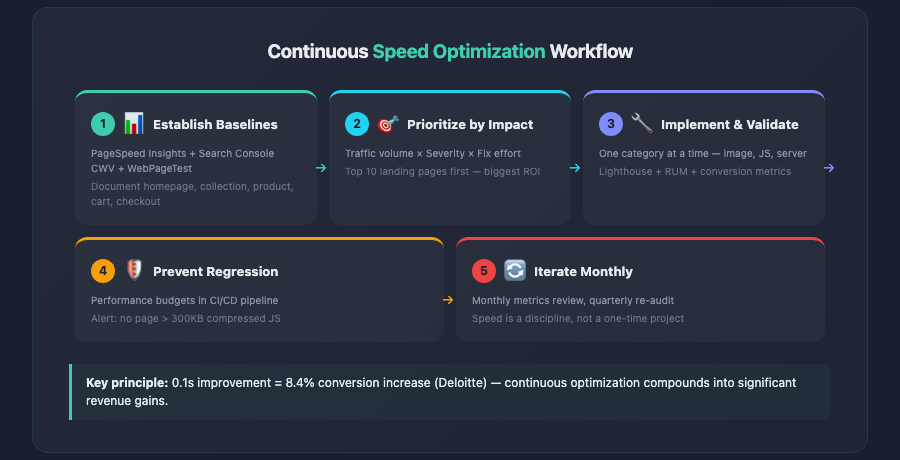
Ecommerce site speed optimization is not a one-time project — it’s an ongoing discipline. Without a structured workflow, performance degrades over time as new features, plugins, content, and third-party integrations accumulate. Here’s how to build a sustainable speed optimization practice.
Step 1: Establish Baselines
Before optimizing anything, measure where you stand. Use multiple tools to get a complete picture:
- Google PageSpeed Insights / Lighthouse: Provides both lab data (synthetic tests) and field data (real user metrics from CrUX). Focus on field data when available — it reflects actual user experience.
- Google Search Console Core Web Vitals report: Shows which pages pass or fail CWV thresholds, grouped by similar URL patterns. Essential for identifying systemic issues.
- WebPageTest: The gold standard for detailed performance analysis. Use it for waterfall analysis, filmstrip comparisons, and third-party script impact testing.
- Real User Monitoring (RUM): Tools like Cloudflare Web Analytics, SpeedCurve, or custom RUM implementations give you actual performance data segmented by device, geography, connection type, and page type.
Document your baseline metrics for key page types: homepage, collection/category pages, product detail pages, cart, and checkout. These are your benchmarks for measuring improvement.
Step 2: Prioritize by Impact
Not all optimizations are equal. Prioritize based on:
- Traffic volume of affected pages. Optimizing your top 10 landing pages will impact more sessions than optimizing a rarely visited policy page.
- Severity of the performance issue. A 4-second LCP on your product pages (high traffic, high intent) is a bigger problem than a minor CLS issue on your blog.
- Effort required vs. impact delivered. Image optimization and lazy loading are typically high-impact, low-effort. Migrating to a new hosting architecture is high-impact but high-effort. Start with quick wins.
Step 3: Implement and Validate
Make changes methodically — one category of optimization at a time — so you can attribute improvements to specific actions. After each change:
- Run Lighthouse tests to confirm lab improvements
- Monitor RUM data for 1-2 weeks to confirm field improvements
- Check conversion rate and revenue metrics to quantify business impact
- Document what was changed and the measured result
Step 4: Prevent Regression
Performance budgets are the best tool for preventing regression. Set concrete thresholds — e.g., “No page may exceed 300KB of compressed JavaScript” or “LCP must remain under 2.5 seconds on mobile” — and enforce them through:
- CI/CD integration: Tools like Lighthouse CI can fail builds that exceed performance budgets.
- Monitoring alerts: Set up alerts when CrUX data or RUM metrics cross your thresholds.
- Regular audits: Review performance quarterly alongside your broader conversion optimization efforts. Our 276-point CRO checklist includes dedicated speed benchmarks as part of its technical audit section.
Step 5: Iterate Continuously
The web evolves, browsers ship new APIs, and your store changes over time. New products, new promotional campaigns, new integrations — all of these can affect performance. Treat speed optimization as a continuous cycle, not a destination. Revisit your metrics monthly, re-audit quarterly, and stay current with emerging techniques and standards.
Key Takeaways
Ecommerce site speed optimization is one of the highest-ROI investments you can make in your online store. Here are the essential points to remember:
- Speed directly drives revenue. A 1-second delay can cost 7% of conversions. A 0.1-second improvement can increase conversions by over 8%. The math is clear — faster stores make more money.
- Core Web Vitals matter for SEO and UX. LCP under 2.5s, INP under 200ms, and CLS under 0.1 should be your minimum targets. These metrics affect both your Google rankings and your customers’ experience.
- Images are your biggest opportunity. Switching to AVIF/WebP, implementing responsive images, and properly lazy loading below-the-fold content can reduce page weight by 50-70%.
- Server performance is the foundation. No amount of front-end optimization can compensate for a slow server. Invest in quality hosting, implement caching at every layer, and use a CDN.
- JavaScript is the most expensive resource. Audit ruthlessly. Remove unused scripts, defer non-critical code, and keep your mobile JS payload under 200KB compressed.
- Third-party scripts accumulate silently. Audit them quarterly. Each one should justify its performance cost with measurable business value. Remove or defer anything that doesn’t.
- Mobile optimization is not optional. With over 72% of ecommerce traffic on mobile, optimizing for real-world mobile conditions — not just desktop or lab tests — is where the revenue opportunity lives.
- Measurement without action is waste; action without measurement is guesswork. Establish baselines, set performance budgets, monitor continuously, and tie speed improvements back to business metrics.
Start with a thorough audit of your current performance, prioritize the highest-impact optimizations, and build speed into your development culture as a non-negotiable requirement. Your customers — and your conversion rate — will thank you.