

Mobile commerce now accounts for over 73% of all ecommerce traffic worldwide — yet mobile conversion rates still lag behind desktop by nearly 50%. If your store converts at 3% on desktop but only 1.5% on mobile, you are leaving serious revenue on the table. The gap is not a mystery: it is a mobile UX problem, and it is fixable.
A focused mobile ecommerce UX audit can expose the friction points that cause shoppers to abandon your store on their phones. In this guide, we will walk through the most impactful areas to audit, give you specific fixes you can implement this week, and share real-world data from brands that saw measurable lifts after addressing these exact issues.
If you have not already conducted a broader ecommerce CRO audit, start there for the full picture. This article zeroes in on the mobile-specific problems that most stores still get wrong in 2026.
Why Mobile Ecommerce UX Deserves Its Own Audit
It is tempting to treat mobile as a scaled-down version of your desktop site. Responsive design handles the layout, and the rest takes care of itself — right? Not even close.
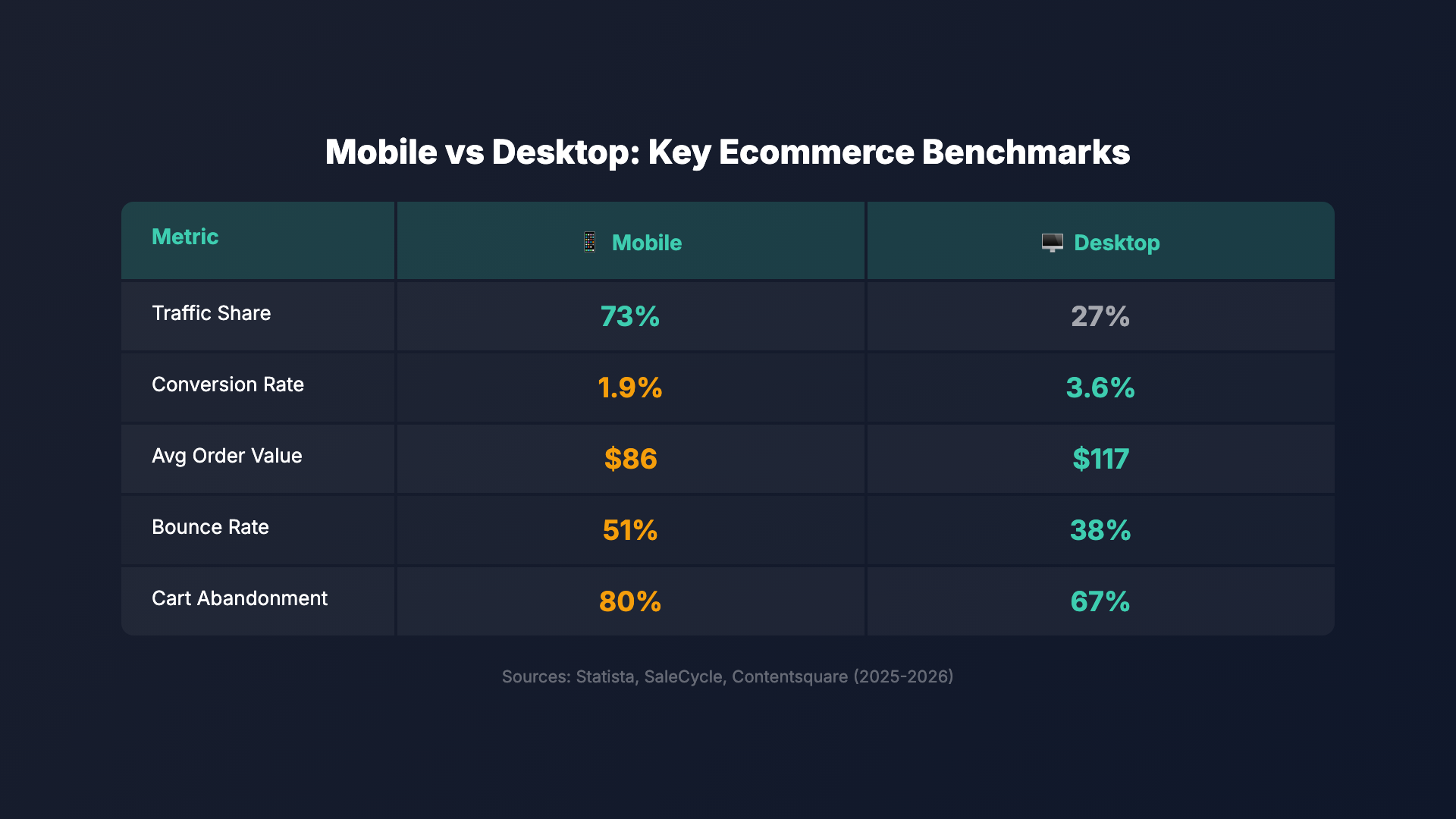
| Metric | Mobile | Desktop | Gap |
|---|---|---|---|
| Traffic share | 73% | 27% | – |
| Conversion rate | 1.9% | 3.6% | -47% |
| Avg. order value | $86 | $117 | -26% |
| Bounce rate | 51% | 38% | +34% |
| Cart abandonment | 80% | 67% | +19% |
| Pages per session | 3.2 | 4.8 | -33% |
Sources: Statista, SaleCycle, Contentsquare (2025-2026)
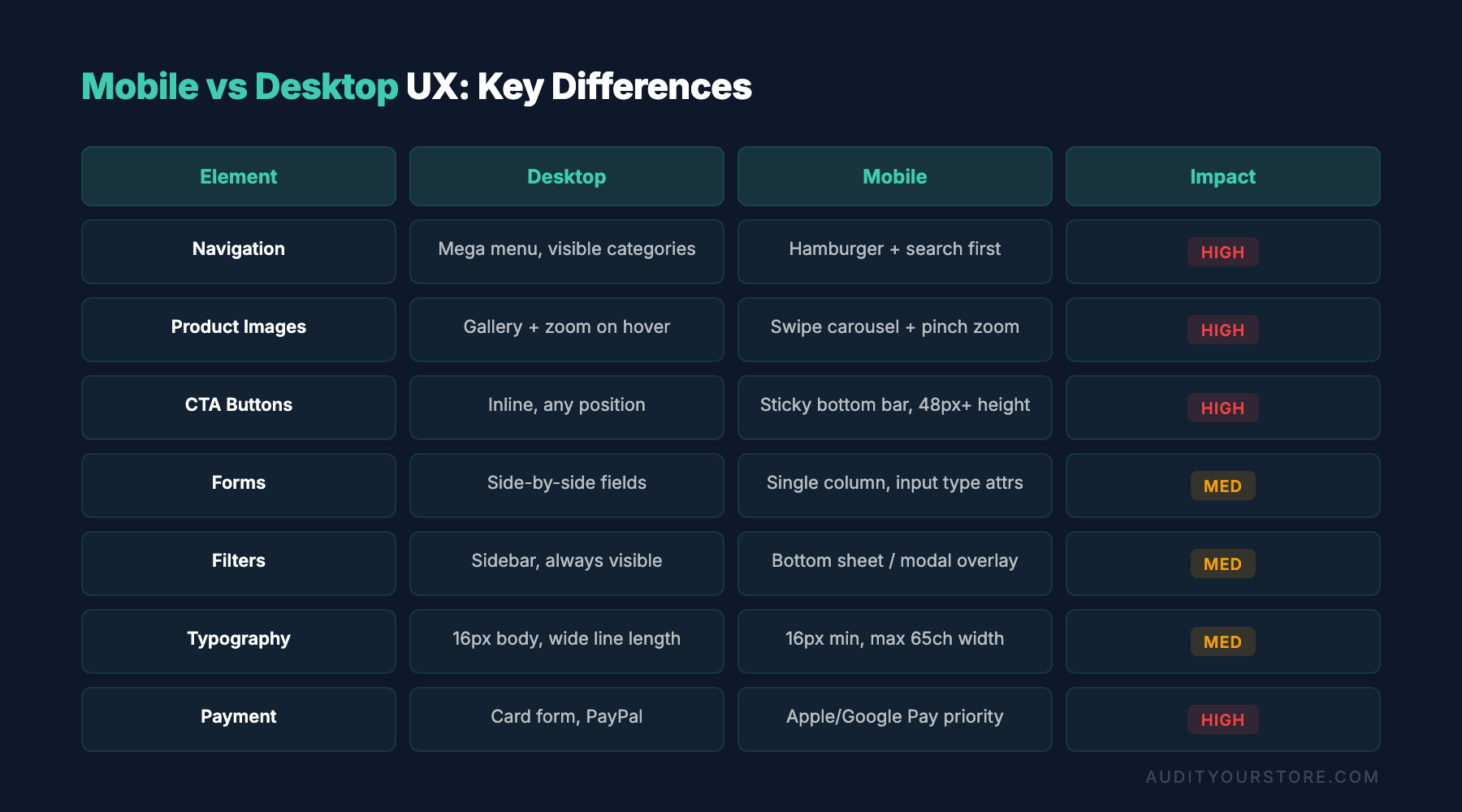
Desktop and mobile are fundamentally different interaction paradigms. On desktop, users have a mouse cursor with pixel-level precision, a full keyboard, and a large viewport. On mobile, they have a thumb, a virtual keyboard that covers half the screen, and a viewport that is roughly one-fifth the size. Every design decision needs to account for these constraints.
Consider the data:
- Cart abandonment on mobile is 85.6% compared to 69.7% on desktop (Baymard Institute, 2025 update).
- 53% of mobile visitors leave a page that takes longer than 3 seconds to load (Google).
- Mobile shoppers who encounter a UX friction point are 62% less likely to purchase from that brand in the future (Forrester).
The bottom line: a separate, dedicated mobile ecommerce UX review is not optional. It is where your biggest conversion gains are hiding.
Thumb Zone Optimization: Designing for How People Actually Hold Phones
Steven Hoober’s research on mobile device usage, updated in recent years with larger phone screen data, shows that 75% of interactions happen with a single thumb. This has direct implications for where you place your most important interactive elements.
The Thumb Zone Map
On a modern 6.5-inch+ smartphone, the comfortable thumb reach zones break down like this:
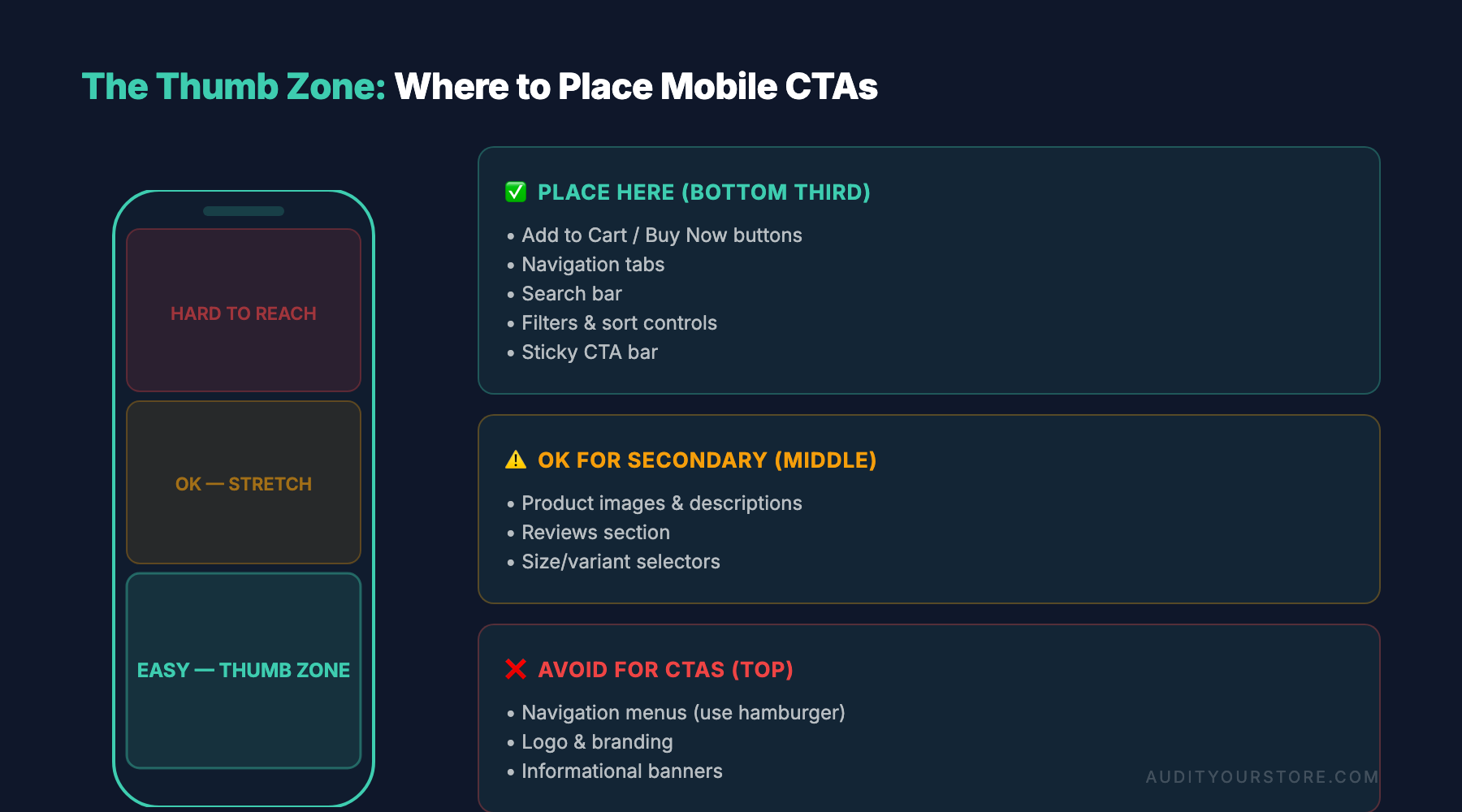
- Easy zone (green): The bottom-center and slightly left-of-center area of the screen. This is where primary actions belong — Add to Cart, Checkout, Apply Coupon.
- Stretch zone (yellow): The middle of the screen and bottom edges. Secondary actions like size selectors, quantity adjusters, and navigation tabs work here.
- Hard zone (red): The top corners and far edges. Do not put anything critical here — yet many stores place their cart icon, search bar, and hamburger menu in the top-right corner, the single hardest spot to reach.
Practical Fixes
Move your primary CTA to a sticky bottom bar. Brands like ASOS and Nike have adopted sticky “Add to Bag” buttons that remain anchored to the bottom of the viewport as users scroll through product details. This single change has been documented to increase add-to-cart rates by 8-12% in A/B tests.
If you use a sticky header for navigation, keep it slim — no taller than 48px. Every pixel of vertical space matters on a 667px-tall viewport (iPhone SE logical resolution). A bloated sticky header that consumes 120px means the user loses nearly 18% of their visible content area.
Audit checkpoint: Open your store on your phone. Using only your right thumb, try to complete a purchase without shifting your grip. Every time you have to reposition your hand, that is a friction point worth logging.
Tap Target Sizing and Spacing: The 48px Rule and Beyond
Google’s own accessibility guidelines specify a minimum tap target size of 48×48 CSS pixels with at least 8px of spacing between adjacent targets. Yet a staggering number of ecommerce stores violate this on critical interactive elements.
Common Tap Target Failures
Here are the most frequent offenders we see during mobile ecommerce UX audits:
- Size variant selectors — Small text links like “S M L XL” with no padding. These should be large, tappable chips with a minimum 44x44px touch area.
- Color swatches — Tiny 20px circles packed together. When a user taps “Navy” but hits “Black” because the swatches are 16px apart, they either don’t notice (wrong product ordered) or get frustrated and leave.
- Footer links — Stacked text links with 4px line spacing. These become an impossible-to-tap wall of text on mobile.
- Quantity stepper buttons — Plus and minus buttons that are 24x24px. These need to be at least 44x44px.
- Form field labels and checkboxes — Checkboxes at their native 16x16px size, unlabeled or with labels that do not expand the tap target. Always wrap the checkbox and its label in a shared
<label>element.
How to Test
Run Google’s Lighthouse audit with the mobile preset. It flags tap targets that are too small or too close together. But don’t rely on automated tools alone — they miss context. A 44px button that is technically large enough can still be frustrating if it is sandwiched between two other 44px buttons with no breathing room.
Use Chrome DevTools’ device emulation to visually inspect every interactive element on your product pages, collection pages, cart, and checkout. Cross-reference with our product page best practices guide for a deeper dive into layout decisions that affect mobile usability.
Mobile Page Speed: The Conversion Killer You Cannot Ignore
Page speed has a compounding effect on mobile conversions. It is not just about the initial load — it is about every subsequent interaction feeling instant. A 100ms delay in responding to a tap feels laggy on mobile in a way it never does on desktop.
Core Web Vitals Targets for Mobile Ecommerce
As of 2026, Google’s Core Web Vitals thresholds remain the benchmark, though the metrics have been refined:
- Largest Contentful Paint (LCP): Under 2.5 seconds. For product pages, this usually means your hero product image. If it loads in 4 seconds, you have already lost a quarter of your visitors.
- Interaction to Next Paint (INP): Under 200ms. This replaced First Input Delay and measures responsiveness across the entire session. Heavy JavaScript frameworks (looking at you, unoptimized React SPAs) are the usual culprits.
- Cumulative Layout Shift (CLS): Under 0.1. On mobile, layout shifts are especially disorienting. The most common offenders: images without explicit dimensions, late-loading banners, and font swaps.
The Image Problem
Images are typically 60-70% of total page weight on ecommerce sites. On mobile, this is devastating because cellular connections are variable and high-latency.
Responsive images are non-negotiable. Use the srcset attribute and the <picture> element to serve appropriately sized images. A product hero image does not need to be 2400px wide on a 390px-wide phone screen. Serve a 780px version (2x for retina) instead of the 2400px desktop version and you cut image payload by over 60%.
Use modern formats: WebP is universally supported now, and AVIF offers 20-30% better compression. If your platform supports it, implement automatic format negotiation via the Accept header.
Lazy-load images below the fold, but do not lazy-load your LCP image (the first product photo the user sees). This is a surprisingly common mistake — developers apply loading="lazy" globally without exempting the primary image, which directly harms LCP.
JavaScript Bloat
Audit your JavaScript payload with webpack-bundle-analyzer or your platform’s equivalent. We routinely see Shopify stores loading 2-3MB of JavaScript on mobile, much of it from apps and third-party scripts that run on every page load. Each unnecessary script competes for the main thread and degrades INP.
Practical steps:
- Remove unused Shopify apps — each one typically injects its own JS bundle.
- Defer non-critical scripts (reviews, wishlists, chat widgets) until after the page is interactive.
- If you are on WooCommerce, our WooCommerce store audit guide covers plugin audit strategies specific to that platform.
- Replace heavy JavaScript carousels with CSS scroll-snap galleries. The performance difference is dramatic.
Mobile Checkout Optimization: Where Conversions Go to Die
Checkout is where the mobile conversion gap is widest. The combination of form entry friction, payment complexity, and trust anxiety on a small screen creates a perfect storm of abandonment.
Reduce Form Fields Ruthlessly
Baymard Institute’s checkout usability research finds that the average ecommerce checkout has 11.3 form fields, nearly double the 6-8 that are actually necessary. On mobile, every unnecessary field is amplified pain. The virtual keyboard covers half the screen, autocomplete is unreliable across browsers, and switching between field types (text, email, phone, number) requires keyboard mode changes that add friction.
Specific reductions to make:
- Combine first and last name into a single “Full Name” field. This alone removes one field and one tap.
- Use the shipping address as the billing address by default with a toggle to enter a different one. Most shoppers use the same address.
- Auto-detect city and state from the ZIP/postal code. Services like Google’s Geocoding API or Zippopotam.us make this trivial. Two fewer fields, zero friction.
- Remove “Company Name” unless you are B2B. If you need it for invoicing, make it optional and collapsed behind a “Add company details” link.
Input Types Matter
This is a small detail with an outsized impact. Setting the correct type and inputmode attributes on form fields determines which virtual keyboard the mobile browser presents:
- Phone number:
type="tel"— triggers the numeric dial pad. - Email:
type="email"— shows the @ symbol on the primary keyboard. - ZIP code:
inputmode="numeric"— triggers the number pad without the validation constraints oftype="number". - Credit card number:
inputmode="numeric"withautocomplete="cc-number"— enables autofill from saved cards.
Test each form field on both iOS Safari and Android Chrome. The keyboard behavior differs, and what works smoothly on one platform can be awkward on the other.
Express Payment Methods
Apple Pay, Google Pay, and Shop Pay bypass the entire form-filling process. On mobile, these are not just “nice to have” — they are conversion infrastructure.
Shopify reports that Shop Pay converts 1.72x higher than standard checkout on mobile. Apple Pay and Google Pay show similar lifts because they eliminate the single biggest source of mobile checkout friction: typing.
Place express payment buttons above the standard checkout form, not below it. Many stores bury these options under a “More payment options” accordion, which defeats the purpose. If 40% of your mobile shoppers have Apple Pay set up, let them use it with zero scrolling.
Audit checkpoint: Time yourself completing a checkout on your mobile store from the cart page to order confirmation. If it takes more than 90 seconds with standard checkout or more than 20 seconds with express checkout, there is room to optimize.
Mobile Navigation and Search: Getting Shoppers to Products Faster
On desktop, mega menus and sidebar filters give shoppers powerful browsing tools. On mobile, these patterns often translate into awkward, multi-level drawers that bury products behind three or four taps.
Search is Your Mobile MVP
Mobile shoppers who use site search convert at 4-6x the rate of those who browse. Yet on most mobile stores, the search function is hidden behind a small magnifying glass icon in the hard-to-reach top-right corner.
Consider these improvements:
- Make search prominent. A persistent search bar (even a collapsed one that expands on tap) performs better than a hidden icon. Zara’s mobile site uses a full-width search bar at the top of the page — it is the first thing shoppers interact with.
- Implement predictive search with visual results. Show product thumbnails, prices, and ratings in the autocomplete dropdown. This turns search into a one-step browsing tool. Algolia, Searchspring, and Klevu all support this.
- Support natural language queries. Shoppers on mobile often type conversationally — “red dress under $50” or “running shoes for wide feet.” Your search needs to parse intent, not just match keywords.
- Show recent searches and trending queries when the search field gains focus. This is especially valuable on mobile because it reduces typing.
Filter and Sort on Mobile
Collection pages with 50+ products need effective filtering, but the typical desktop sidebar filter does not work on mobile. Best practices:
- Use a full-screen filter overlay rather than a slide-in drawer. This gives filters room to breathe and makes each option an easy tap target.
- Show applied filter count on the trigger button (“Filters (3)”) so users know their filters are active without opening the panel.
- Place the Sort button next to Filters at the top of the product grid, sticky on scroll. Sorting is the single most-used filtering mechanism on mobile — shoppers want “Price: Low to High” accessible in two taps.
- Use horizontal scrolling chips for the most common filters (size, color, price range). This allows quick filtering without opening the full filter panel. H&M and Uniqlo both use this pattern effectively.
Mobile-Specific UX Patterns That Lift Conversions
Beyond fixing problems, there are mobile-native interaction patterns that actively improve conversions. These go beyond responsive design into genuinely mobile-first thinking.
Swipe Gestures for Product Galleries
Product image galleries should support native horizontal swipe. This sounds obvious, but many stores still use arrow-button carousels that require precise taps on small left/right arrows. The swipe gesture is the most natural interaction on a phone — use it.
Show a pagination indicator (dots or a fraction like “2/7”) so users know there are more images to see. Without this indicator, many shoppers assume the first image is the only one.
Bottom Sheet Modals
When you need to present secondary content — size guides, shipping info, product details — use a bottom sheet pattern instead of a centered modal. Bottom sheets slide up from the bottom of the screen, keeping them within the thumb zone and feeling native to the mobile OS.
Apple’s and Google’s own design systems (HIG and Material Design) both standardize this pattern, which means users already understand the interaction: swipe down to dismiss, drag up to expand.
Persistent Cart Summary
On desktop, a mini-cart dropdown works well. On mobile, consider a persistent cart indicator in the bottom navigation bar (if you use one) or a floating badge that shows the item count and total. Tapping it should open a bottom sheet cart summary, not navigate to a full cart page. Keeping shoppers on the product page while confirming their item was added reduces navigational friction and encourages continued browsing.
Progressive Disclosure
Long product pages are a problem on mobile. A product description that is 500 words on desktop becomes an endless scroll on a phone. Use collapsible accordion sections for:
- Product description (show first 2-3 lines, “Read more” toggle)
- Specifications and materials
- Shipping and returns
- Customer reviews (show aggregate rating and first review, load more on tap)
This is not about hiding information — it is about letting the user choose what to expand based on their needs. The primary visible elements should be: images, price, variant selection, and the Add to Cart button. Everything else is secondary.
How to Run a Systematic Mobile Ecommerce UX Audit

Now that we have covered the individual elements, here is a structured process for auditing your mobile experience end to end.
Step 1: Real Device Testing
Emulators are useful for development, but you must test on real devices. At minimum, test on:
- An iPhone (latest iOS on a mid-range device like iPhone 15)
- A recent Samsung Galaxy (Android, Chrome)
- An older/budget device (to test performance under constrained CPU and memory)
Test on cellular connections, not just Wi-Fi. Use Chrome DevTools network throttling set to “Slow 4G” for a realistic approximation of what many shoppers experience.
Step 2: Record and Review Sessions
Install a session recording tool (Hotjar, FullStory, or Microsoft Clarity — the latter is free). Filter recordings to mobile sessions that reached the product page but did not purchase. Watch at least 30 sessions. You will see patterns emerge: rage taps on unresponsive elements, repeated scrolling past the CTA, hesitation at checkout fields.
Pay special attention to pinch-to-zoom events. If users are zooming in on product images or text, your content is too small. This is a reliable signal of readability or image quality problems.
Step 3: Funnel Analysis by Device
In Google Analytics 4, segment your purchase funnel by device category. Compare the drop-off rates at each stage:
- Landing page to product page
- Product page to Add to Cart
- Add to Cart to Checkout initiated
- Checkout initiated to Purchase
Where the mobile drop-off diverges most from desktop, that is where your biggest mobile UX problem lives. If the biggest gap is at Step 4 (checkout), focus on checkout optimization first. If it is at Step 2 (product page), your product page mobile layout needs work.
Step 4: Automated Audits
Run these tools across your key page types (homepage, collection, product, cart, checkout):
- Google Lighthouse (Performance, Accessibility, Best Practices — mobile preset)
- PageSpeed Insights (uses real Chrome User Experience Report data)
- WebPageTest (set to a Moto G Power on 4G from a geographically relevant location)
- axe DevTools or WAVE for accessibility issues that overlap with usability (contrast, label associations, focus order)
Automated tools will not catch everything — they miss context-dependent issues like confusing flows or missing information. But they efficiently surface the technical problems: slow resources, layout shifts, missing alt text, and tap target violations.
Step 5: Prioritize by Impact and Effort
Not every issue is equal. Prioritize fixes using a simple 2×2 matrix of impact (how much it affects conversion) versus effort (how hard it is to fix). Quick wins to tackle first usually include:
- Adding
inputmodeattributes to form fields (5 minutes, noticeable usability lift) - Implementing a sticky Add to Cart button (1-2 hours, measurable conversion lift)
- Enabling express payment methods (configuration change, high impact)
- Optimizing product images with proper
srcsetand modern formats (medium effort, significant speed improvement)
For a systematic approach, our 276-point CRO checklist includes a dedicated mobile UX section that helps you work through these issues methodically without missing anything.
Key Takeaways
- Mobile ecommerce UX requires a dedicated audit — responsive design alone does not solve the fundamental differences in how people interact with phones versus desktops.
- Design for the thumb zone. Place primary CTAs (Add to Cart, Checkout) in sticky bottom bars within easy thumb reach. Avoid burying critical interactions in the top corners of the screen.
- Respect the 48px minimum tap target rule with adequate spacing between interactive elements. Test size selectors, color swatches, and form checkboxes — these are the most common failure points.
- Optimize images aggressively for mobile. Use
srcset, serve WebP/AVIF, lazy-load below-the-fold images, and never lazy-load your LCP image. - Streamline mobile checkout to 6-8 fields maximum. Use correct input types, auto-detect city/state from ZIP, and default to shipping-equals-billing.
- Prioritize express payment methods (Apple Pay, Google Pay, Shop Pay) and surface them above the standard checkout form on mobile.
- Make search prominent and powerful. Mobile shoppers who search convert at 4-6x higher rates — give them a visible, predictive, visually rich search experience.
- Test on real devices over cellular connections. Emulators and Wi-Fi testing mask the performance reality your customers experience.
- Use session recordings filtered to mobile to observe real user behavior, then prioritize fixes based on where your mobile funnel diverges most from desktop.
The mobile conversion gap is not inevitable. It is the result of specific, identifiable UX problems — and each one has a known fix. Start with the highest-impact, lowest-effort changes, measure the results, and iterate. Your mobile shoppers are already there. Now make the experience worthy of their attention.