WooCommerce powers over 7 million online stores worldwide, commanding roughly 23% of the top one million ecommerce sites on the internet. It is the most popular ecommerce platform on the planet — and yet the vast majority of those stores are running on default settings, unoptimized hosting, bloated plugin stacks, and checkout flows that quietly bleed revenue every single day.
The flexibility that makes WooCommerce powerful is the same thing that makes it dangerous. Unlike hosted platforms such as Shopify or BigCommerce, WooCommerce hands you every lever — hosting configuration, database management, plugin architecture, caching layers, security hardening. That freedom is a double-edged sword. Without a systematic woocommerce store audit, you are almost certainly leaving money on the table.
This guide walks you through a complete 12-area audit checklist built specifically for WooCommerce stores. Whether you run the audit manually or use a dedicated woocommerce audit tool, this framework will help you find the conversion leaks, performance bottlenecks, and security gaps that are holding your store back.
What Is a WooCommerce Store Audit?
A WooCommerce store audit is a systematic, top-to-bottom evaluation of every layer of your online store — from the server it sits on to the checkout button your customers click. The goal is to identify performance issues, conversion blockers, security vulnerabilities, and missed optimization opportunities across the entire stack.
If you have audited a Shopify or BigCommerce store before, you need to understand that a woocommerce store audit is a fundamentally different exercise. Here is why:
- You own the infrastructure. On Shopify, hosting is managed for you. On WooCommerce, your server configuration, PHP version, MySQL tuning, and caching strategy are all your responsibility — and all potential points of failure.
- The plugin ecosystem is unregulated. WooCommerce’s 60,000+ compatible plugins are not vetted the way Shopify apps are. A single poorly coded plugin can tank your site speed, create security holes, or break your checkout.
- Theme quality varies wildly. WooCommerce themes range from enterprise-grade to amateur hobby projects. The theme you chose two years ago may be the single biggest drag on your conversion rate.
- Database management is on you. WordPress databases accumulate bloat — post revisions, transients, orphaned metadata, spam comments. On hosted platforms, this is invisible. On WooCommerce, it directly impacts query speed.
- Security is your problem. No managed WAF, no automatic patching, no built-in PCI compliance. You build the fortress yourself.
This is precisely why a generic “ecommerce audit” template falls short for WooCommerce. You need a checklist that accounts for the WordPress layer, the WooCommerce layer, and the hosting layer simultaneously. That is what follows.
The 12-Area WooCommerce Audit Checklist
1. Hosting & Server Performance
Hosting is the foundation of every WooCommerce store, and it is the single area where WooCommerce stores diverge most sharply from hosted platforms. If your server is slow, no amount of conversion optimization will save you.
What to audit:
- PHP version: You should be running PHP 8.1 or higher. PHP 8.x offers 15-25% performance gains over PHP 7.4. Check your current version from the WordPress dashboard under Tools > Site Health > Info > Server, or run
php -vvia SSH. - Server response time (TTFB): Your Time to First Byte should be under 400ms for uncached pages and under 100ms for cached pages. Measure with
curl -o /dev/null -s -w "TTFB: %{time_starttransfer}\n" https://yourstore.com - PHP memory limit: WooCommerce recommends a minimum of 256MB. For stores with 1,000+ products or heavy plugin stacks, 512MB is safer. Check with:
wp config get WP_MEMORY_LIMIT - MySQL version: Run MySQL 8.0+ or MariaDB 10.6+. Older versions lack query optimizer improvements that matter for WooCommerce’s complex product queries.
- Object caching: Redis or Memcached should be active. Without object caching, every page load hammers the database. Verify with:
wp redis status(if using the Redis Object Cache plugin). - HTTP protocol: Confirm HTTP/2 or HTTP/3 is enabled. Many budget hosts still serve WooCommerce stores over HTTP/1.1, which serializes asset loading.
Recommended hosting specs for WooCommerce:
| Store Size | Products | Monthly Orders | Recommended Setup |
|---|---|---|---|
| Small | Under 500 | Under 200 | Managed WordPress host, 2 CPU, 4GB RAM, Redis |
| Medium | 500–5,000 | 200–2,000 | VPS or dedicated, 4 CPU, 8GB RAM, Redis, CDN |
| Large | 5,000+ | 2,000+ | Cloud (AWS/GCP), auto-scaling, 8+ CPU, 16GB+ RAM, ElastiCache, full CDN |
If you are still on shared hosting with more than 200 products, that is likely your single biggest conversion problem. Migrate first, optimize second.
2. Plugin Audit
Plugin bloat is the silent killer of WooCommerce performance. The average WooCommerce store runs 30-50 plugins. Many store owners have no idea which ones are active, which are redundant, and which are actively harming their site.
What to audit:
- Total plugin count: List all active and inactive plugins. Inactive plugins still pose security risks. Run via WP-CLI:
wp plugin list --format=table - Plugin update status: Identify plugins that have not been updated in 12+ months. These are security liabilities. Check with:
wp plugin list --fields=name,status,update,update_version - Plugin conflicts: Use the Health Check & Troubleshooting plugin to test for conflicts by enabling a troubleshooting mode that deactivates all plugins for your session only.
- Duplicate functionality: Common offenders include multiple SEO plugins, multiple caching plugins, multiple security plugins, and analytics plugins that duplicate what Google Tag Manager already handles.
- Asset loading: Check which plugins load CSS and JavaScript on every page, even where they are not needed. Use the Query Monitor plugin to identify this: look under the Scripts and Styles tabs.
- Database queries per plugin: Query Monitor also shows you how many database queries each plugin triggers. Any plugin adding 50+ queries per page load deserves scrutiny.
Quick plugin audit via WP-CLI:
# List all plugins with their status and version
wp plugin list --format=table

# Check for available updates
wp plugin list --update=available --format=table

# Count total active plugins
wp plugin list --status=active --format=count

# Identify plugins not from wordpress.org (potentially unvetted)
wp plugin list --fields=name,status,update_package --format=csv | grep -v "downloads.wordpress.org"
Must-have plugin categories for WooCommerce:
- Caching (WP Rocket, W3 Total Cache, or LiteSpeed Cache)
- Security (Wordfence or Sucuri)
- SEO (Yoast WooCommerce SEO or Rank Math)
- Image optimization (ShortPixel or Imagify)
- Backup (UpdraftPlus or BlogVault)
- Performance monitoring (Query Monitor for development)
Every plugin beyond these essential categories should justify its existence. If a feature can be achieved with a code snippet in functions.php instead of a full plugin, that is almost always the better choice.
3. Theme & Template Quality
Your WooCommerce theme is not just a design layer — it is the structural framework that controls how product data renders, how checkout flows, and how fast your pages load. A poorly coded theme can add 2-5 seconds to every page load.
What to audit:
- Theme age and updates: When was the theme last updated? If it has not been updated in 12+ months, it may have compatibility issues with current WooCommerce versions.
- WooCommerce template overrides: Check if your theme overrides WooCommerce template files that are now outdated. WooCommerce flags this in WooCommerce > Status > System Status under “Template Overrides.” Outdated overrides can break checkout, product pages, and cart functionality.
- Render-blocking resources: Run a Lighthouse audit and check how many render-blocking CSS and JS files the theme loads. Lightweight themes (GeneratePress, Kadence, Blocksy) typically load under 50KB of CSS. Heavy themes (Avada, Divi, Flatsome) can load 300KB+.
- jQuery dependency: Modern themes should minimize jQuery usage. Check if your theme still relies heavily on jQuery UI components, which add significant weight.
- Page builder overhead: If your theme bundles a page builder (Elementor, WPBakery, Divi Builder), audit whether the builder’s CSS and JS loads on WooCommerce pages where it is not needed.
Check for outdated WooCommerce template overrides:
# Via WP-CLI, check WooCommerce system status
wp wc system_status --user=1 --fields=theme

# Manually check for theme template overrides
find /path/to/wp-content/themes/your-theme/woocommerce/ -name "*.php" -type f
If your theme has more than five outdated WooCommerce template overrides, it is time to either update them or seriously consider migrating to a modern, lightweight WooCommerce-compatible theme.
4. Product Page Optimization
The product page is where purchase decisions happen. WooCommerce gives you significant control over product page elements, but default WooCommerce product pages are bare-bones by design. Auditing this area is about ensuring every element earns its place and drives conversions.
What to audit:
- Product image quality and loading: Are images properly sized and compressed? WooCommerce generates multiple thumbnail sizes. Check WooCommerce > Settings > Products > Product Images and ensure your thumbnail dimensions match your theme layout. Serve images in WebP format via your image optimization plugin.
- Product gallery functionality: Does the gallery support zoom, lightbox, and swipe on mobile? Test the default WooCommerce gallery features: zoom, lightbox, and slider. If any are missing, check that your theme declares support:
add_theme_support('wc-product-gallery-zoom') - Variable product UX: If you sell variable products (size, color, etc.), audit the variation selector. Default WooCommerce dropdowns are functional but unintuitive. Consider whether variation swatches (color circles, image tiles, button selectors) would improve the experience.
- Add-to-cart button visibility: Is the add-to-cart button visible without scrolling on both desktop and mobile? Is it a high-contrast color that stands out from the rest of the page?
- Trust signals: Are security badges, return policy, shipping information, and payment icons visible near the add-to-cart button? In WooCommerce, these are typically added via the
woocommerce_single_product_summaryhook. - Product schema markup: Verify that structured data (Product schema) is correctly output for every product, including price, availability, reviews, and SKU. Test with Google’s Rich Results Test tool.
- Cross-sells and upsells: Are related products, upsells, and cross-sells configured? Check Product Data > Linked Products for each product. Empty linked products fields mean you are missing revenue.
- Stock status visibility: Low stock notifications (“Only 3 left in stock”) can drive urgency. Check WooCommerce > Settings > Products > Inventory for the low stock threshold.
Audit product data completeness via WP-CLI:
# Count products missing images
wp db query "SELECT COUNT(*) as missing_images FROM wp_posts p LEFT JOIN wp_postmeta pm ON p.ID = pm.post_id AND pm.meta_key = '_thumbnail_id' WHERE p.post_type = 'product' AND p.post_status = 'publish' AND pm.meta_value IS NULL;"

# Count products missing descriptions
wp db query "SELECT COUNT(*) as missing_desc FROM wp_posts WHERE post_type = 'product' AND post_status = 'publish' AND (post_content = '' OR post_content IS NULL);"

# Count products with no price set
wp db query "SELECT COUNT(*) as no_price FROM wp_posts p LEFT JOIN wp_postmeta pm ON p.ID = pm.post_id AND pm.meta_key = '_price' WHERE p.post_type = 'product' AND p.post_status = 'publish' AND (pm.meta_value = '' OR pm.meta_value IS NULL);"
5. Cart & Checkout
Checkout is where conversions live or die. WooCommerce’s default checkout is notoriously long — a full-page form with billing fields, shipping fields, order notes, and a separate order review section. This is the single biggest area where WooCommerce stores lose to Shopify on conversion rate.
What to audit:
- Number of checkout fields: Count every visible field on your checkout page. The WooCommerce default includes 14+ fields. Every field you remove increases conversion rate. Remove fields you do not need via
woocommerce_checkout_fieldsfilter or in WooCommerce > Settings > Shipping/Billing. - Checkout page type: WooCommerce now offers a block-based checkout. If you are still on the legacy shortcode checkout (
- Guest checkout: Is guest checkout enabled? Check WooCommerce > Settings > Accounts & Privacy. Forcing account creation before purchase is one of the top reasons for cart abandonment.
- Payment gateway options: Audit your payment gateways. At minimum, offer card payments and one express option (Apple Pay, Google Pay, or PayPal). WooCommerce Payments and Stripe both support express checkout methods. Check that all gateways are in live (not test) mode.
- Cart abandonment recovery: Do you have an abandoned cart recovery system? WooCommerce does not include this natively. Plugins like AutomateWoo, Retainful, or Mailchimp integrations can recover 5-15% of abandoned carts.
- Coupon field visibility: A prominent coupon field causes “coupon hunting” — users leave your site to search for discount codes and often do not return. Consider hiding the coupon field behind a collapsible link.
- Shipping calculator: Does your cart page show estimated shipping costs before checkout? Unexpected shipping costs at checkout are the number one reason for cart abandonment globally.
- Error handling: Submit the checkout form with invalid data and observe the error messages. Are they clear? Do they scroll the user to the problem field? WooCommerce’s default error handling dumps all errors at the top of the page, which is poor UX on long forms.
Remove unnecessary checkout fields:
// Add to your theme's functions.php or a custom plugin
add_filter('woocommerce_checkout_fields', function($fields) {
    // Remove fields you don't need
    unset($fields['billing']['billing_company']);
    unset($fields['order']['order_comments']);
    // Make phone optional instead of required
    $fields['billing']['billing_phone']['required'] = false;
    return $fields;
});
6. Mobile Experience
Mobile accounts for 60-75% of ecommerce traffic. If your WooCommerce store is not optimized for mobile, you are ignoring the majority of your visitors. And “responsive” does not mean “optimized.” A theme that technically reflows on mobile can still deliver a miserable shopping experience.
What to audit:
- Mobile page speed score: Run Google PageSpeed Insights and check the mobile score specifically. WooCommerce stores frequently score 30-50 points lower on mobile than desktop due to unoptimized images, heavy JavaScript, and render-blocking resources.
- Touch target sizes: Are buttons, links, and form fields large enough to tap accurately? Google recommends a minimum of 48×48 CSS pixels for touch targets. Check variation selectors, quantity buttons, and filter controls specifically.
- Mobile navigation: Can users find products within two taps from the homepage? Test the mobile menu, category navigation, and search functionality. WooCommerce’s default product category widgets are often poorly styled on mobile.
- Mobile checkout flow: Complete a full purchase on a mobile device. Time yourself. If it takes more than 90 seconds from cart to order confirmation, the flow needs work. Pay attention to: keyboard types for input fields (numeric for phone/zip), autofill compatibility, and the visibility of the Place Order button.
- Mobile product images: Do product images display properly on mobile? Test pinch-to-zoom, gallery swiping, and image load times on a throttled 3G connection.
- Sticky add-to-cart: On product pages, does the add-to-cart button remain accessible as users scroll through the description? A sticky add-to-cart bar on mobile can increase add-to-cart rates by 7-12%.
- Mobile search: Test the search experience. Does it support autocomplete? Can users search by SKU? Does it handle typos? WooCommerce’s default search is weak — consider whether a plugin like SearchWP or Algolia integration would improve discoverability.
7. Site Speed
Site speed is where WooCommerce stores struggle the most compared to hosted platforms. Shopify serves pages from a global CDN with aggressive caching. WooCommerce pages are dynamically generated from PHP and MySQL on every request unless you implement caching yourself.
WooCommerce-specific speed issues to audit:
- Uncached WooCommerce pages: Cart, checkout, and my-account pages cannot be page-cached because they contain user-specific data. These pages rely entirely on server performance and object caching. Benchmark these pages separately from your homepage.
- Database query count: Install Query Monitor and check the total database queries per page. A healthy WooCommerce product page should run 50-100 queries. If you are seeing 200+, investigate which plugins are responsible.
- External HTTP requests: Check for plugins or theme features that make external API calls on page load (payment gateway checks, inventory syncs, real-time shipping rate calculations, social media feeds). Each external request adds latency. Use Query Monitor’s HTTP API Calls panel to identify these.
- WooCommerce AJAX calls: WooCommerce uses AJAX for cart fragments (the cart icon count in the header). The
wc-ajax=get_refreshed_fragmentscall runs on every page load and is one of the most common performance bottlenecks. If you do not use a dynamic cart icon, disable cart fragments:
// Disable WooCommerce cart fragments on non-cart/checkout pages
add_action('wp_enqueue_scripts', function() {
    if (!is_cart() && !is_checkout()) {
        wp_dequeue_script('wc-cart-fragments');
    }
});- Image optimization: Audit total image payload per page. Product pages with multiple gallery images, thumbnails for related products, and category banners can easily exceed 5MB without optimization. Target under 1MB total image weight per page.
- Caching layers: Verify that all three caching layers are active:
- Page caching: Full HTML pages cached for anonymous visitors (WP Rocket, LiteSpeed Cache, Varnish).
- Object caching: Database query results cached in memory (Redis, Memcached).
- CDN: Static assets served from edge locations (Cloudflare, BunnyCDN, AWS CloudFront).
- Core Web Vitals: Check LCP (Largest Contentful Paint), INP (Interaction to Next Paint), and CLS (Cumulative Layout Shift) for key WooCommerce pages: homepage, category pages, product pages, and cart. Use Google Search Console’s Core Web Vitals report for field data.
Quick speed benchmark via command line:
# Test TTFB for key WooCommerce pages
for url in "https://yourstore.com" "https://yourstore.com/shop" "https://yourstore.com/product/sample-product" "https://yourstore.com/cart"; do
  echo "Testing: $url"
  curl -o /dev/null -s -w "TTFB: %{time_starttransfer}s | Total: %{time_total}s\n" "$url"
done
8. SEO Configuration
WooCommerce SEO is more complex than standard WordPress SEO because you are dealing with product pages, category archives, variable products, filtered views, and pagination — all of which create potential duplicate content, crawl budget waste, and indexing issues.
What to audit:
- SEO plugin configuration: Whether you use Yoast WooCommerce SEO or Rank Math, verify that:
- Product schema is set to “Product” (not “Article” or “WebPage”)
- Brand and GTIN fields are mapped if you use them
- Global identifier (ISBN, GTIN, MPN) fields are populated for products
- Breadcrumbs are enabled and use proper BreadcrumbList schema
- URL structure: Check your permalink settings. The recommended WooCommerce URL structure is
/product-category/category-name/for categories and/product/product-name/for individual products. Avoid URL structures that include dates or numeric IDs. - Canonical tags: Variable products and filtered category pages are major sources of duplicate content. Verify that canonical tags point to the correct URL on:
- Variable product pages (should canonical to the main product URL)
- Filtered category pages (e.g.,
?filter_color=redshould canonical to the unfiltered category page) - Paginated category pages (page 2+ should canonical to page 1, or use rel=prev/next)
- XML sitemap: Verify your sitemap includes product pages, category pages, and product images. Check that out-of-stock products are handled according to your preference (included or excluded). Access your sitemap at
/sitemap.xmlor/product-sitemap.xml. - Thin content pages: Audit category pages and tag pages for thin content. WooCommerce category descriptions are often empty, resulting in pages with nothing but a product grid. Add unique, keyword-rich descriptions to at least your top 20 category pages.
- Internal linking: Check that product pages link to relevant categories, related products link to each other, and your blog content links to product and category pages where appropriate.
- Robots.txt and crawl directives: Ensure that cart, checkout, my-account, and WooCommerce AJAX endpoints are blocked from crawling. Review your robots.txt:
# Recommended robots.txt additions for WooCommerce
User-agent: *
Disallow: /cart/
Disallow: /checkout/
Disallow: /my-account/
Disallow: /?add-to-cart=*
Disallow: /*?orderby=*
Disallow: /*?filter_*
9. Security Audit
WooCommerce stores process payments and store customer data, making them high-value targets. Unlike Shopify, where security is managed by the platform, WooCommerce security is entirely your responsibility. A single breach can cost you your business — not just in financial terms, but in customer trust and regulatory penalties.
What to audit:
- SSL certificate: Verify SSL is active site-wide and that all pages, images, and scripts load over HTTPS. Check for mixed content warnings using your browser’s developer tools console.
- WordPress and WooCommerce versions: Are both running the latest stable versions? Check Dashboard > Updates. Running outdated core software is the most common attack vector.
- File permissions: Audit critical file permissions via SSH:
wp-config.phpshould be 440 or 400.htaccessshould be 444 or 440- Directories should be 755
- Files should be 644
- The
wp-content/uploadsdirectory should not contain PHP files
- Login security: Check for:
- Two-factor authentication on all admin accounts
- Brute force protection (login attempt limiting)
- Changed default login URL (wp-login.php renamed)
- Disabled XML-RPC if not needed (
xmlrpc.php) - Strong password policies enforced
- User roles and permissions: Audit all admin and shop manager accounts. Remove accounts that no longer need access. Check for any accounts you do not recognize.
- PCI compliance considerations: If you handle card data directly (not via a redirect or iframe-based gateway), you need PCI DSS compliance. Most WooCommerce stores should use gateways that handle card data off-site (Stripe, PayPal) to minimize PCI scope.
- Security headers: Check for proper HTTP security headers: Content-Security-Policy, X-Content-Type-Options, X-Frame-Options, Strict-Transport-Security, and Referrer-Policy.
Quick security check commands:
# Check file permissions on critical files
stat -c '%a %n' wp-config.php .htaccess

# Find PHP files in uploads directory (should not exist)
find wp-content/uploads -name "*.php" -type f

# List all admin users
wp user list --role=administrator --fields=ID,user_login,user_email

# Check if debug mode is disabled in production
wp config get WP_DEBUG
10. Database Optimization
WordPress databases grow over time, and WooCommerce accelerates that growth significantly. Every order, product variation, customer session, and plugin setting adds rows to the database. Without periodic maintenance, query performance degrades and page load times increase.
What to audit:
- Database size: Check total database size and identify the largest tables. WooCommerce stores often have
wp_postmetaandwp_optionsas the two largest tables due to product metadata and autoloaded transients. - Autoloaded data in wp_options: The
wp_optionstable contains anautoloadcolumn. Every row withautoload='yes'is loaded into memory on every single page load. If autoloaded data exceeds 1MB, it becomes a performance problem. Audit with:
# Check total autoloaded data size
wp db query "SELECT SUM(LENGTH(option_value)) as autoload_size FROM wp_options WHERE autoload = 'yes';"

# Find the largest autoloaded options
wp db query "SELECT option_name, LENGTH(option_value) as size FROM wp_options WHERE autoload = 'yes' ORDER BY size DESC LIMIT 20;"

# Check total database size
wp db size --tables- Transients: Expired transients accumulate in
wp_options. If you are not using object caching, these pile up. Clean expired transients:wp transient delete --expired - Post revisions: WordPress stores every revision of every post and product. A product edited 50 times has 50 revisions in the database. Limit revisions by adding to
wp-config.php:define('WP_POST_REVISIONS', 5); - Orphaned postmeta: When products or orders are deleted, their metadata often remains in
wp_postmeta. Identify orphaned rows:
# Count orphaned postmeta entries
wp db query "SELECT COUNT(*) FROM wp_postmeta WHERE post_id NOT IN (SELECT ID FROM wp_posts);"- WooCommerce sessions: WooCommerce stores customer session data in
wp_woocommerce_sessions. Expired sessions should be cleaned automatically, but verify:wp db query "SELECT COUNT(*) FROM wp_woocommerce_sessions WHERE session_expiry < UNIX_TIMESTAMP();" - Action Scheduler: WooCommerce uses Action Scheduler for background tasks. The
wp_actionscheduler_actionstable can grow massive if not maintained. Check its size and clear completed actions older than 30 days. - Database table engine: Ensure all tables use InnoDB, not MyISAM. InnoDB supports row-level locking, which is critical for concurrent WooCommerce operations (simultaneous orders). Check with:
wp db query "SELECT TABLE_NAME, ENGINE FROM information_schema.TABLES WHERE TABLE_SCHEMA = DATABASE() AND ENGINE != 'InnoDB';"
11. Analytics & Tracking
You cannot optimize what you do not measure. Yet many WooCommerce stores have broken analytics, missing ecommerce tracking, or incomplete conversion data. If your data is wrong, your decisions will be wrong.
What to audit:
- GA4 ecommerce events: Verify that the following GA4 ecommerce events are firing correctly:
view_item— on product page loadadd_to_cart— when a product is added to the cartbegin_checkout— when the checkout page loadsadd_payment_info— when payment details are enteredadd_shipping_info— when shipping method is selectedpurchase— on the order confirmation/thank-you page
Test each event in GA4's DebugView (Admin > DebugView) by installing the GA4 Debugger Chrome extension and completing a test purchase.
- Purchase event data accuracy: Complete a test order and verify in GA4 that the transaction revenue, tax, shipping, and item-level data (product name, SKU, category, price, quantity) all match the actual order.
- Server-side tracking: Client-side tracking (JavaScript-based) is increasingly unreliable due to ad blockers and iOS privacy changes. Audit whether you have server-side tracking configured. Options for WooCommerce include:
- Google Tag Manager Server-Side container
- Facebook Conversions API (CAPI)
- WooCommerce webhooks that fire to a server-side endpoint on order completion
- Conversion attribution: Check that UTM parameters are preserved through the WooCommerce checkout flow. Some checkout plugins strip URL parameters, breaking attribution.
- Google Merchant Center: If you run Google Shopping campaigns, verify your product feed is syncing correctly, all products are approved, and pricing/availability matches your store in real time.
- Heatmap and session recording: Do you have qualitative analytics in place? Tools like Hotjar, Microsoft Clarity (free), or FullStory can reveal UX issues that quantitative data alone cannot show.
12. International Sales
If you sell internationally — or plan to — your WooCommerce store needs infrastructure that most domestic-only stores lack. Currency conversion, tax compliance, geo-pricing, and localized content all require careful configuration.
What to audit:
- Multi-currency support: Are you displaying prices in the visitor's local currency? WooCommerce does not support multi-currency natively. Audit your multi-currency plugin (WOOCS, Currency Switcher for WooCommerce, or WooCommerce Payments multi-currency). Verify that:
- Exchange rates are updated automatically (at least daily)
- Currency is detected based on the visitor's geo-location
- Checkout completes in the displayed currency (not a stealth conversion at payment)
- Order data stores both the local and base currency amounts
- Geo-pricing: Beyond currency conversion, do you need different base prices per region? Some products may need to be priced differently in the EU vs. the US vs. Asia-Pacific due to market conditions, taxes, or licensing. WooCommerce supports this via plugins like WooCommerce Conditional Pricing.
- Tax compliance: International tax is complex. Audit your tax configuration for:
- EU VAT (including the EU One-Stop Shop / OSS scheme for digital goods)
- UK VAT post-Brexit
- US sales tax (nexus-based, consider automated solutions like TaxJar or Avalara)
- Australian GST, Canadian GST/HST/PST
- Shipping zones and methods: Review WooCommerce > Settings > Shipping. Are all countries you sell to covered by a shipping zone? Are shipping rates accurate? Are there countries you ship to that do not have rates configured (resulting in "$0 shipping" or checkout errors)?
- Localization: Audit language support. If you serve multiple languages, verify your translation plugin (WPML, Polylang, TranslatePress) correctly translates:
- Product names and descriptions
- Checkout fields and error messages
- Email notifications
- URL slugs (hreflang tags configured correctly)
- App install banners for international traffic: If your WooCommerce store has a companion mobile app and you serve international audiences, smart app banners that adapt to user language and location can significantly improve app adoption. Geo-targeted banners display the right messaging to visitors from different regions.
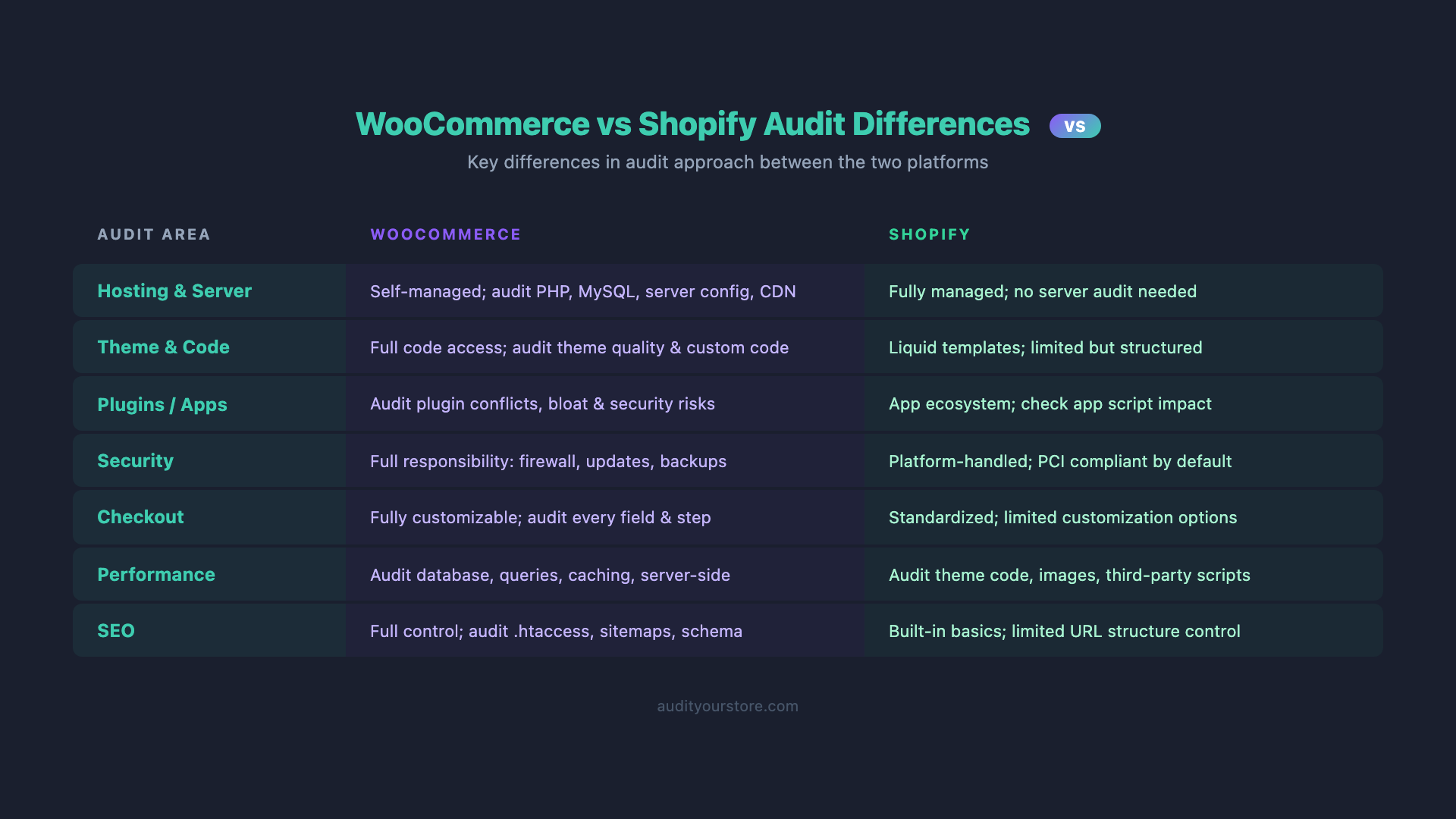
WooCommerce vs Shopify: Audit Differences
If you have experience auditing Shopify stores, here is a concise comparison of what changes when you audit a WooCommerce site:
| Audit Area | Shopify | WooCommerce |
|---|---|---|
| Hosting & Server | Managed by Shopify. Nothing to audit. | Entirely your responsibility. PHP version, MySQL config, caching, CDN — all must be audited. |
| Plugins/Apps | Vetted by Shopify App Store. Sandboxed execution. | Unvetted. Full server access. A single bad plugin can compromise the entire server. |
| Theme | Liquid templates with enforced standards. | PHP templates with no enforced standards. Wild variation in code quality. |
| Checkout | Shopify-managed. Limited customization (unless Shopify Plus). | Fully customizable. More can go wrong, but more can be optimized. |
| Security | Managed by Shopify. PCI Level 1 compliant out of the box. | Your responsibility. SSL, firewalls, file permissions, user roles — all manual. |
| Database | Not accessible. No optimization needed. | Direct MySQL access. Requires regular maintenance and optimization. |
| SEO | Rigid URL structure. Limited schema customization. | Full control over URLs, schema, sitemaps, and meta. More power, more complexity. |
| Speed | Generally fast out of the box (CDN, caching built in). | Requires manual optimization of every caching layer. Uncached pages can be very slow. |
The bottom line: auditing a WooCommerce store requires deeper technical expertise but also offers more levers to pull. Where Shopify limits what you can break, WooCommerce lets you break — and fix — everything.
Essential WooCommerce Audit Tools
A thorough woocommerce store audit requires the right tools. Here are the essential free and paid options, organized by audit area.
Free WooCommerce Audit Tools
- Query Monitor (Free Plugin): The single most valuable woocommerce audit tool for developers. Shows database queries, PHP errors, hooks, HTTP API calls, scripts, styles, and performance data per page. Install it, audit your site, then deactivate it in production.
- WooCommerce System Status: Built into WooCommerce at WooCommerce > Status > System Status. Shows PHP version, database info, active plugins, template overrides, log files, and WooCommerce configuration. Often overlooked but surprisingly comprehensive.
- WordPress Site Health: Built into WordPress at Tools > Site Health. Flags critical issues like outdated PHP, inactive plugins, debugging enabled in production, and REST API errors.
- Google PageSpeed Insights: Free performance audit with field data (from Chrome User Experience Report) and lab data (Lighthouse). Test your homepage, a category page, a product page, and the cart page separately.
- Google Search Console: Essential for SEO auditing. Shows indexing issues, Core Web Vitals data, crawl errors, and structured data validation. Check the "Page indexing" report for WooCommerce-specific issues like parameter-based URLs being indexed.
- GTmetrix (Free Tier): Provides waterfall charts that show exactly which resources load in what order and how long each takes. Excellent for identifying slow plugins and external requests.
- Microsoft Clarity (Free): Session recording and heatmaps at no cost. Install it and watch real users navigate your WooCommerce store. You will find UX issues in minutes that analytics alone would never reveal.
- Health Check & Troubleshooting (Free Plugin): Lets you test for plugin conflicts by disabling all plugins in a sandboxed session without affecting live visitors.
Paid WooCommerce Audit Tools
- WP Rocket ($59/year): The most popular caching plugin for WooCommerce. Handles page caching, browser caching, CSS/JS minification, lazy loading, and database cleanup. Worth auditing even if you already have it installed — most users have it misconfigured.
- Screaming Frog SEO Spider ($259/year): Crawl your entire WooCommerce site to find broken links, duplicate content, missing meta tags, redirect chains, orphan pages, and schema markup issues. The industry standard for technical SEO audits.
- Ahrefs / Semrush: For backlink auditing, keyword gap analysis, competitor benchmarking, and tracking rankings for your product and category pages.
- New Relic / Blackfire.io: Application performance monitoring that profiles PHP execution at the code level. If Query Monitor shows slow queries but you need to trace the exact function call chain, these tools go deeper.
- Wordfence Premium ($119/year): Real-time firewall, malware scanning, login security, and vulnerability alerts for your entire WordPress + WooCommerce stack.
- MainWP or ManageWP: If you manage multiple WooCommerce stores, these tools provide centralized dashboards for updates, security, and performance monitoring across all sites.
WooCommerce-Specific CLI Tools
# WP-CLI is your best friend for WooCommerce audits
# Install it if you don't have it: https://wp-cli.org/

# Full system status report
wp wc system_status --user=1

# List all WooCommerce settings
wp wc setting_option list general --user=1

# Check WooCommerce database tables
wp db tables 'wp_wc_*' --size --format=table

# Export full audit snapshot
wp wc system_status --user=1 --format=json > woo-audit-snapshot.json
Frequently Asked Questions
How often should I audit my WooCommerce store?
Run a comprehensive woocommerce store audit at least every quarter (every 3 months). Between full audits, perform monthly spot-checks on site speed, security updates, and plugin updates. If you make major changes — a theme switch, WooCommerce version upgrade, new payment gateway, or hosting migration — run a focused audit on the affected areas immediately after the change.
Can I use a woocommerce audit tool to automate the entire audit?
No single woocommerce audit tool covers all 12 areas. The best approach is to combine automated tools (Query Monitor for performance, Screaming Frog for SEO, Wordfence for security) with manual review (checkout flow testing, mobile UX evaluation, plugin assessment). Automated tools catch technical issues efficiently, but conversion-focused insights — like whether your add-to-cart button is persuasive enough or your checkout creates unnecessary friction — require human judgment.
What is the most common issue found in WooCommerce audits?
Plugin bloat combined with inadequate hosting. The typical pattern is a store that started on cheap shared hosting, accumulated 40+ plugins over time, never implemented object caching, and wonders why pages take 5+ seconds to load. The fix is usually a combination of better hosting (with Redis), removing 10-15 unnecessary plugins, and implementing proper page caching. This alone can cut load times by 60-70%.
How is a WooCommerce CRO audit different from a general website audit?
A woocommerce conversion optimization audit focuses specifically on the path to purchase: product page persuasion, cart experience, checkout flow, payment friction, and post-purchase experience. A general website audit covers broader concerns like SEO, accessibility, and content quality. A woocommerce CRO checklist prioritizes changes by revenue impact — fixing a checkout bug that affects 100% of buyers is more valuable than optimizing a blog post that generates 0.1% of traffic.
Should I hire a professional to audit my WooCommerce store or do it myself?
It depends on your technical confidence. The hosting, plugin, database, and security sections of this checklist require comfort with SSH, WP-CLI, and MySQL. If those terms are unfamiliar, hire a WooCommerce specialist. If you are technically proficient, you can run most of this audit yourself using the tools and commands provided in this guide. For the woocommerce conversion optimization areas (product pages, checkout, mobile UX), a fresh pair of expert eyes often spots issues that store owners are blind to simply because they see their own site every day.
Start Your WooCommerce Audit Today
This 12-area checklist gives you the framework to audit your WooCommerce site from server to checkout. But if you want a proven, step-by-step system that goes even deeper into conversion optimization, the 276-Point CRO Checklist is built exactly for this purpose.
The checklist works for WooCommerce stores of every size. It covers every element on every page — product layouts, cart UX, checkout flow, trust signals, mobile experience, post-purchase sequences, and dozens more areas that directly impact your revenue per visitor. Each item is actionable, prioritized by impact, and based on data from thousands of ecommerce store audits.
Running a WooCommerce store that serves international customers? Multi-currency and geo-targeted content are just part of the puzzle. SmartBanner helps international WooCommerce stores drive mobile app installs with geo-targeted, language-aware smart app banners that adapt to each visitor's location. If your WooCommerce store has a companion app and a global audience, it is a tool worth adding to your stack.
Stop leaving revenue on the table. Grab the 276-Point CRO Checklist and give your WooCommerce store the audit it deserves.